
Product search and cart
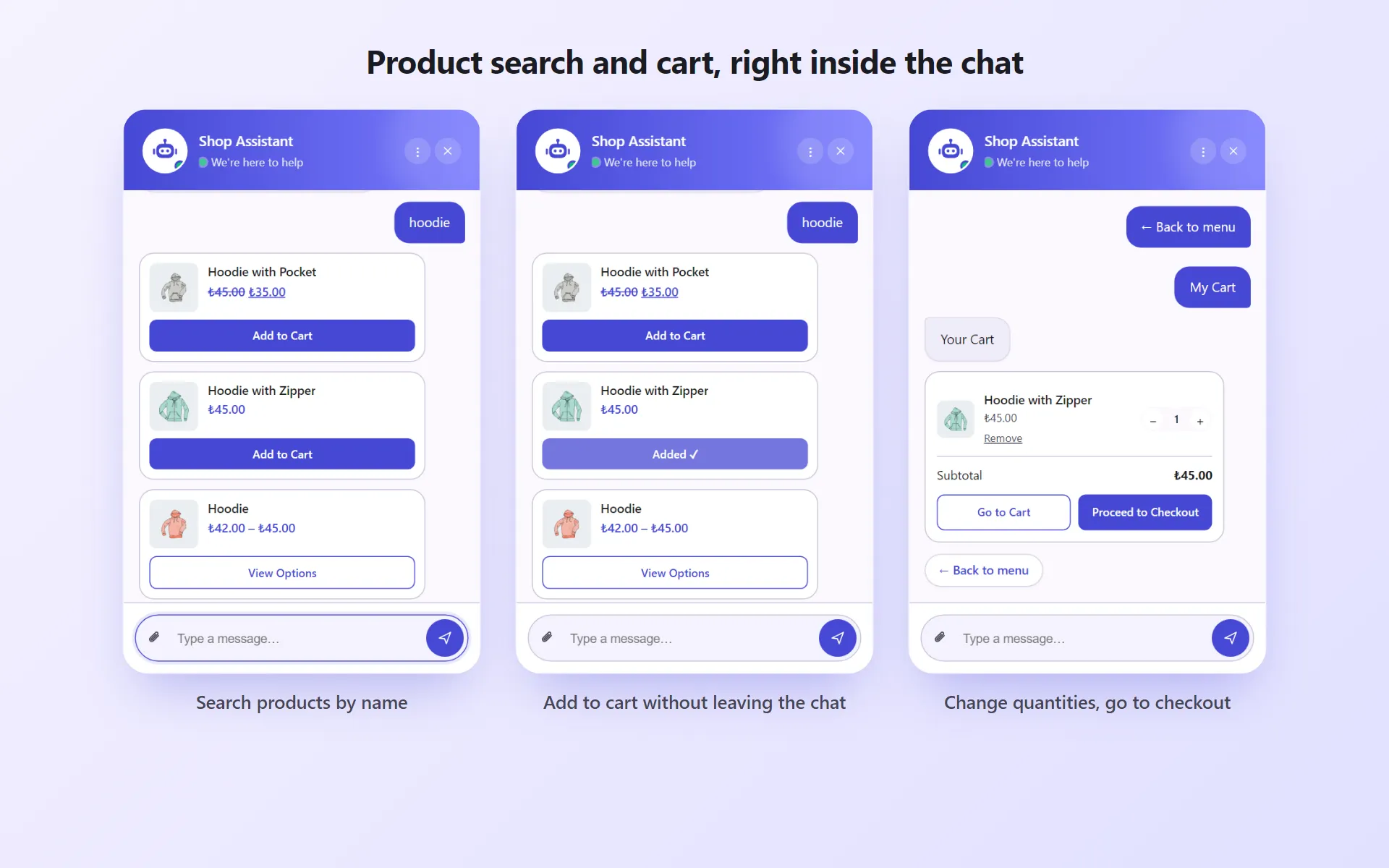
Product search
Section titled “Product search”A visitor clicks Search Products and types a word. If a typed message doesn’t match the FAQ, a product search is run too.
- The search covers published products, in the product name and description. The 5 most relevant products are shown.
- Each result has the product image, its price and a link to the product page.
- For simple products, an Add to Cart button appears if the product is in stock and purchasable.
- For variable products (size, color, etc.), a View Options button appears and goes to the product page, where the choice is made.
Showcase
Section titled “Showcase”The Showcase button in the menu shows up to 6 products in this order:
- products on sale, if there are any,
- otherwise products marked as featured,
- otherwise best sellers.
To feature a product, click the star next to it in the WooCommerce Products list.
The My Cart button shows the visitor’s WooCommerce cart inside the chat. From there the visitor can:
- change quantities with − / +,
- remove an item with Remove,
- go to WooCommerce’s own pages with Go to Cart or Checkout.
The small badge on the chat button shows the number of items in the cart.
You can turn off the add-to-cart and showcase features under General → WooCommerce Features. Details: General settings.
Searches with no results
Section titled “Searches with no results”When a product search returns nothing, the searched word is saved. The Searches with no results table on the Dashboard page shows the 10 most searched words, how many times each was searched and the time of the last search.
This list is useful for two things:
- Stock decisions: if “linen shirt” was searched 14 times, your customers are waiting for that product.
- Product names and FAQ: if customers search for a product with a word you don’t use (for example “cardigan” instead of “sweater”), add that word to the product name or description. If the word is really a question (like “shipping cost”), add an FAQ for it.
Click Clear list to reset it. The list keeps the 100 most recent searches.
Email notification
Section titled “Email notification”If you want to receive emails for searches with no results, turn on Also email me when a product search finds no results under General → Notifications.
- This option is off by default.
- When on, at most one email per day is sent for the same word.