
Forms and support requests
Support requests
Section titled “Support requests”When a visitor clicks Support Request in the menu, the bot asks for their name, email address and message in turn. When the request is sent:
- the record is added to the Tryo Chat → Support Requests page,
- an email goes to the address in General → Notifications. The email includes the visitor’s name, email, message, the page they were on, their IP address and their browser. When you reply to the email, your reply goes straight to the visitor.
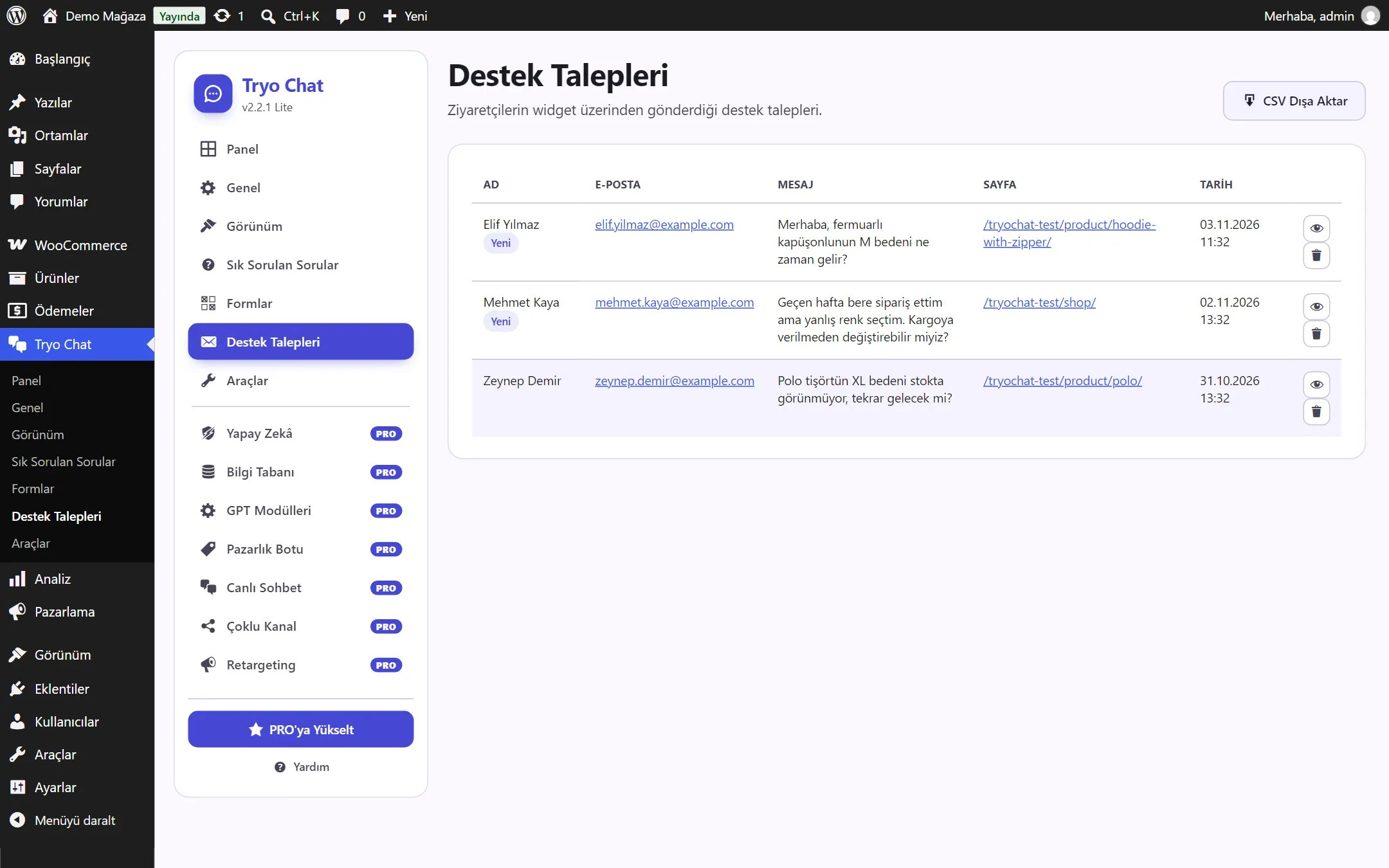
On the Support Requests page:
- New requests are marked New. When you open the page, the requests on it count as read and are subtracted from the “new requests” count on the Dashboard.
- 👁 View opens the full message.
- Delete removes the record permanently.
- Export CSV downloads all requests as a file you can open in Excel.
File attachments
Section titled “File attachments”Visitors can attach a file with the paperclip icon in the message box.
- Allowed types: JPG, PNG, GIF, WEBP and PDF.
- Maximum size: 5 MB.
- To prevent abuse, a single IP address can upload at most 10 files per hour.
The uploaded file is saved in your site’s Media / uploads folder and its link is added to the message.
Custom forms
Section titled “Custom forms”Besides the support request, you can build your own forms for specific jobs: quote requests, wholesale enquiries, appointments and so on. Forms are listed in the chat menu under the Forms button. The bot asks the visitor the form’s questions one by one.
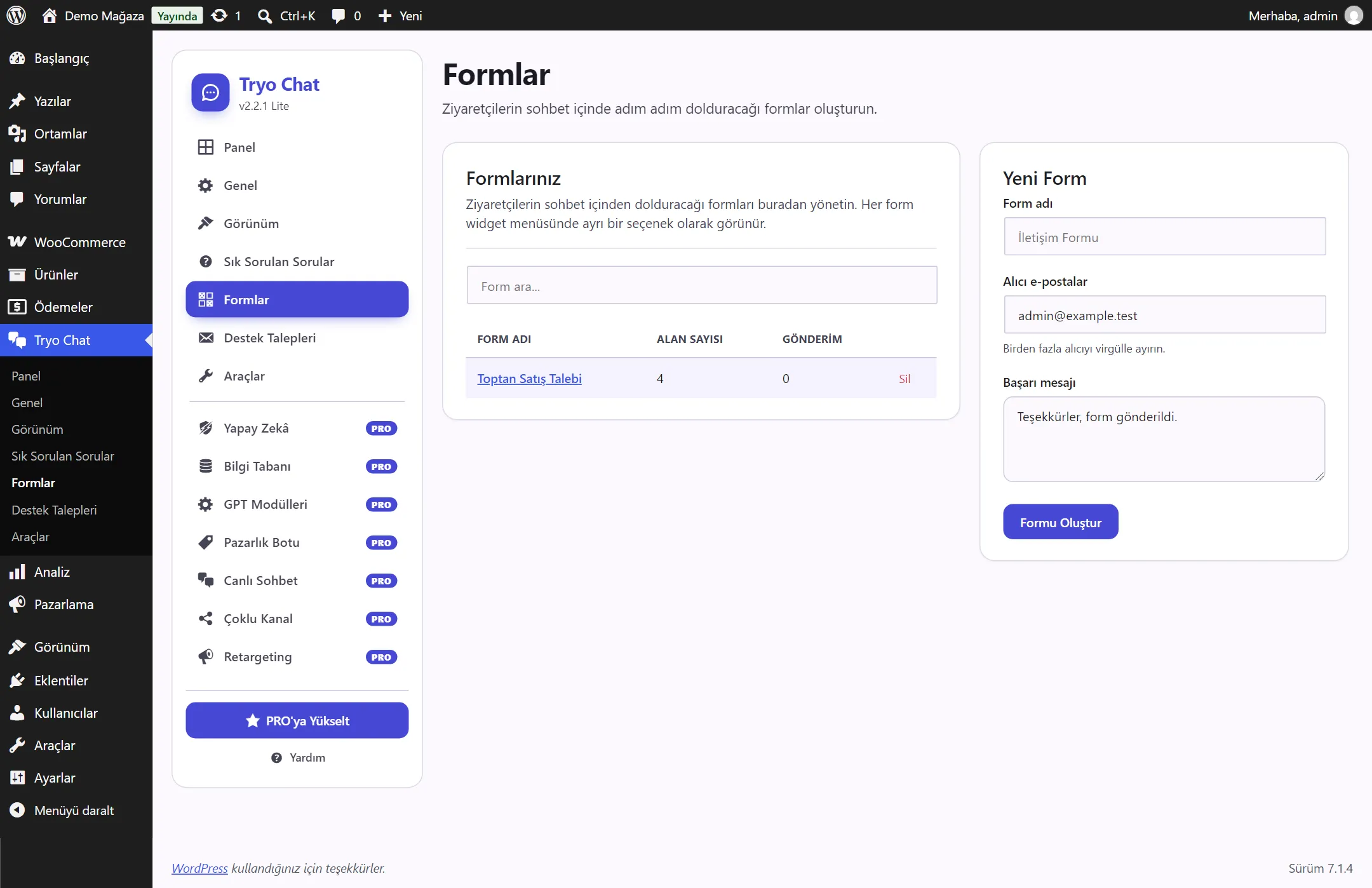
Creating a form
Section titled “Creating a form”- Open the Tryo Chat → Forms page.
- In the New Form section on the right, enter:
- Form name: The name the visitor sees in the menu.
- Recipient emails: The addresses submissions are sent to. Separate multiple addresses with a comma.
- Success message: The text shown to the visitor after the form is sent.
- Click Create Form, then click the form name to add fields.
Adding fields
Section titled “Adding fields”For each field:
- Question / label: The question the bot asks the visitor, for example “Estimated quantity?”.
- Field type:
- Text: Free text.
- Email: Checked to be a valid email address.
- Number: Only numbers are accepted.
- Select list: Options are shown as buttons. Write one option per line.
- Required field: If checked, it can’t be left empty.
You can change the order of the fields with the arrow buttons. The bot asks the questions in this order.
Submissions
Section titled “Submissions”The Submissions section at the bottom of the form page lists the responses received. The CSV button downloads all of that form’s submissions.
Personal data
Section titled “Personal data”Support requests and form submissions are stored in your own WordPress database: name, email, message, page address, IP address and browser information. Files uploaded by visitors are saved in the uploads folder. Tryo Chat does not share this data with third parties.
For GDPR and similar regulations:
- State in your privacy policy that this data is collected through the chat.
- If you receive a deletion request, delete the relevant record from the Support Requests page.
- Deleting the plugin removes all records. Details: Installation.