
Frequently asked questions (FAQ)
The FAQ list is what lets Tryo Chat answer visitors instantly. It is used in two ways:
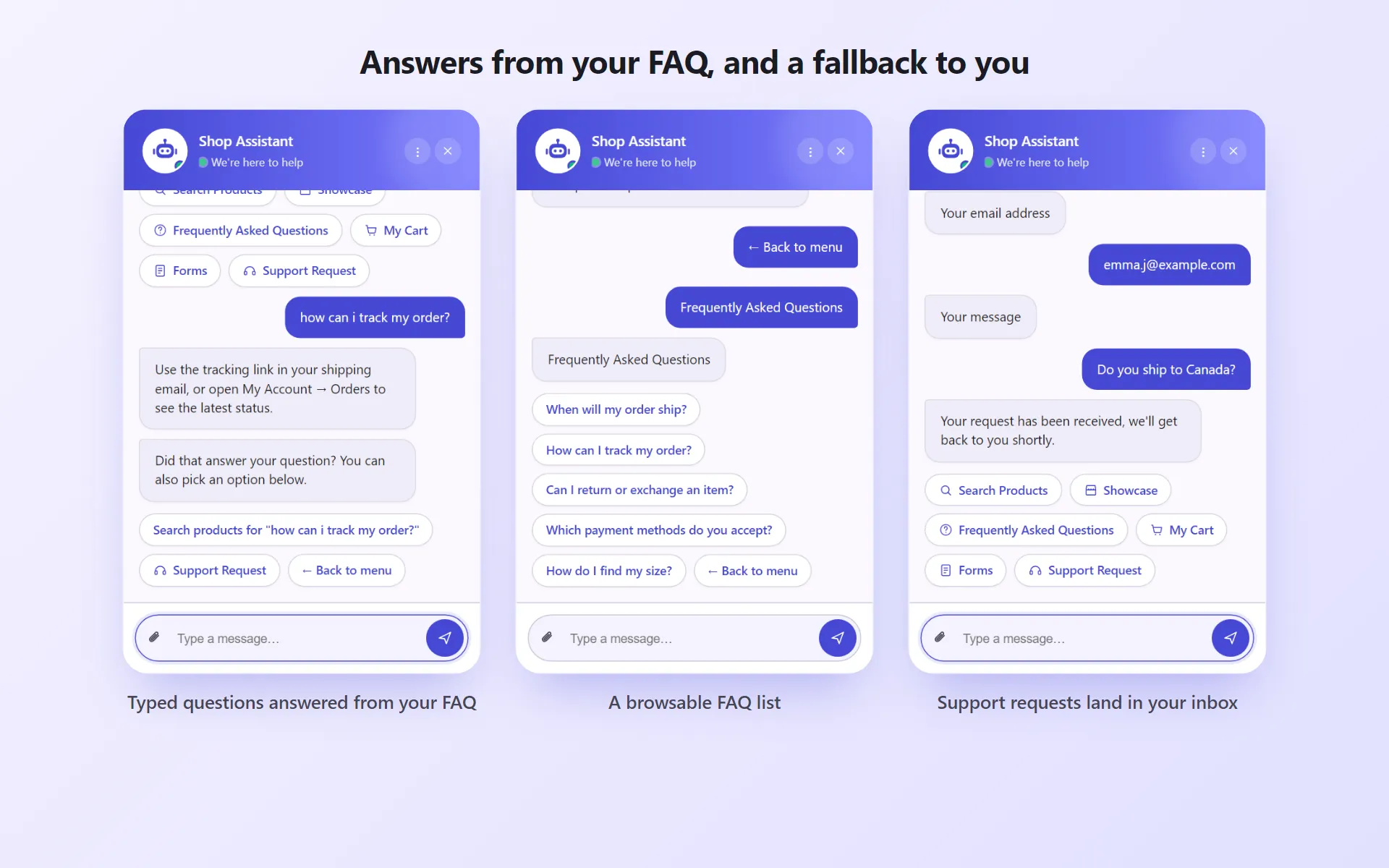
- If a visitor clicks Frequently Asked Questions in the menu, all questions are shown as a list. Clicking a question shows its answer.
- If a visitor types their own question, Tryo Chat tries to match it against your FAQs (explained below).
Adding a question
Section titled “Adding a question”Open Tryo Chat → Frequently Asked Questions.
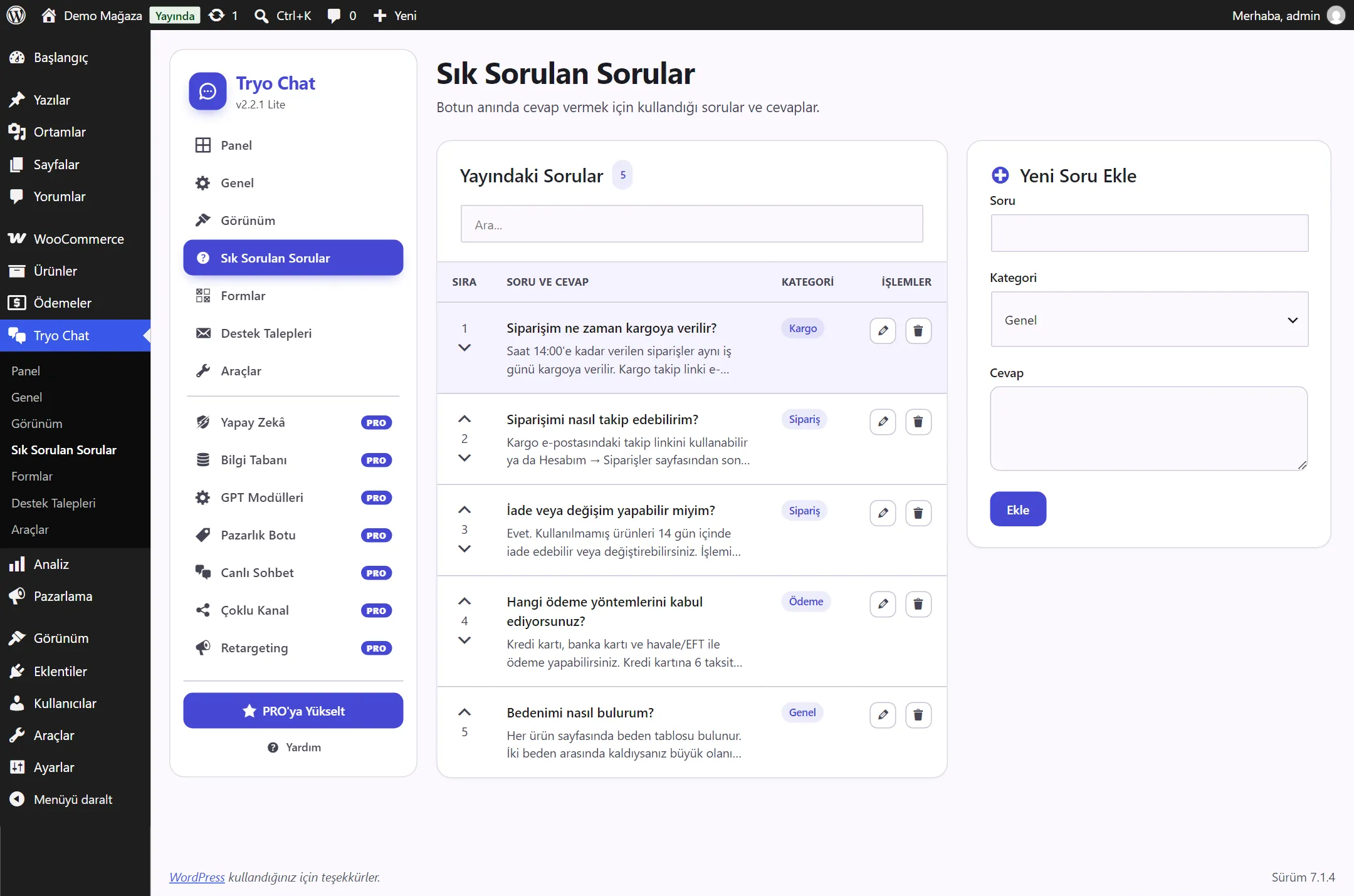
- In the Add New Question form on the right, type the question and the answer.
- Pick a category: General, Account, Order, Payment or Shipping. Categories only keep the list tidy in the admin; visitors don’t see them.
- Click Add.
Editing, ordering, deleting
Section titled “Editing, ordering, deleting”Each question in the list has buttons next to it:
- ✎ Edit: the form on the right opens filled with the question. Make your changes and click Save.
- ↑ / ↓: moves the question up or down. Visitors see questions in this order.
- ✕ Delete: deletes the question after you confirm.
The search box above the list searches question and answer text.
How are typed questions answered?
Section titled “How are typed questions answered?”When a visitor types a message instead of clicking a button, Tryo Chat tries the following in order:
- FAQ match: it compares the words in the message with the words in your FAQ questions. If it finds a question that matches well enough, it shows its answer. Below it, it adds the message “Was this the answer to your question?” along with options to search products, send a support request and return to the menu.
- Product search: if no FAQ matches, it tries the message as a product search.
- Redirect: if no product is found either, it offers the visitor the FAQ list, a support request and the menu.
Matching looks at word stems. For example, the message “how do I track my order?” matches the question “How can I track my order?”. Filler words such as “how”, “a” and “for” are ignored. For one-word messages, one matching word is enough; for longer messages at least two words must match. This way greetings like “hello” aren’t wrongly tied to an answer.
Tips for better matching
Section titled “Tips for better matching”- Write questions the way customers ask them. Write “Can I return or exchange an item?” instead of “Return policy”.
- Use the key word in the question. If customers say “shipping”, the question should say “shipping” too; having it only in the answer isn’t enough.
- One topic per question. Add two separate questions instead of “Shipping and returns”.
- Check the searches with no results. The list on the Dashboard shows which words customers use. Add a new FAQ for topics that come up often but have no answer.