
General settings
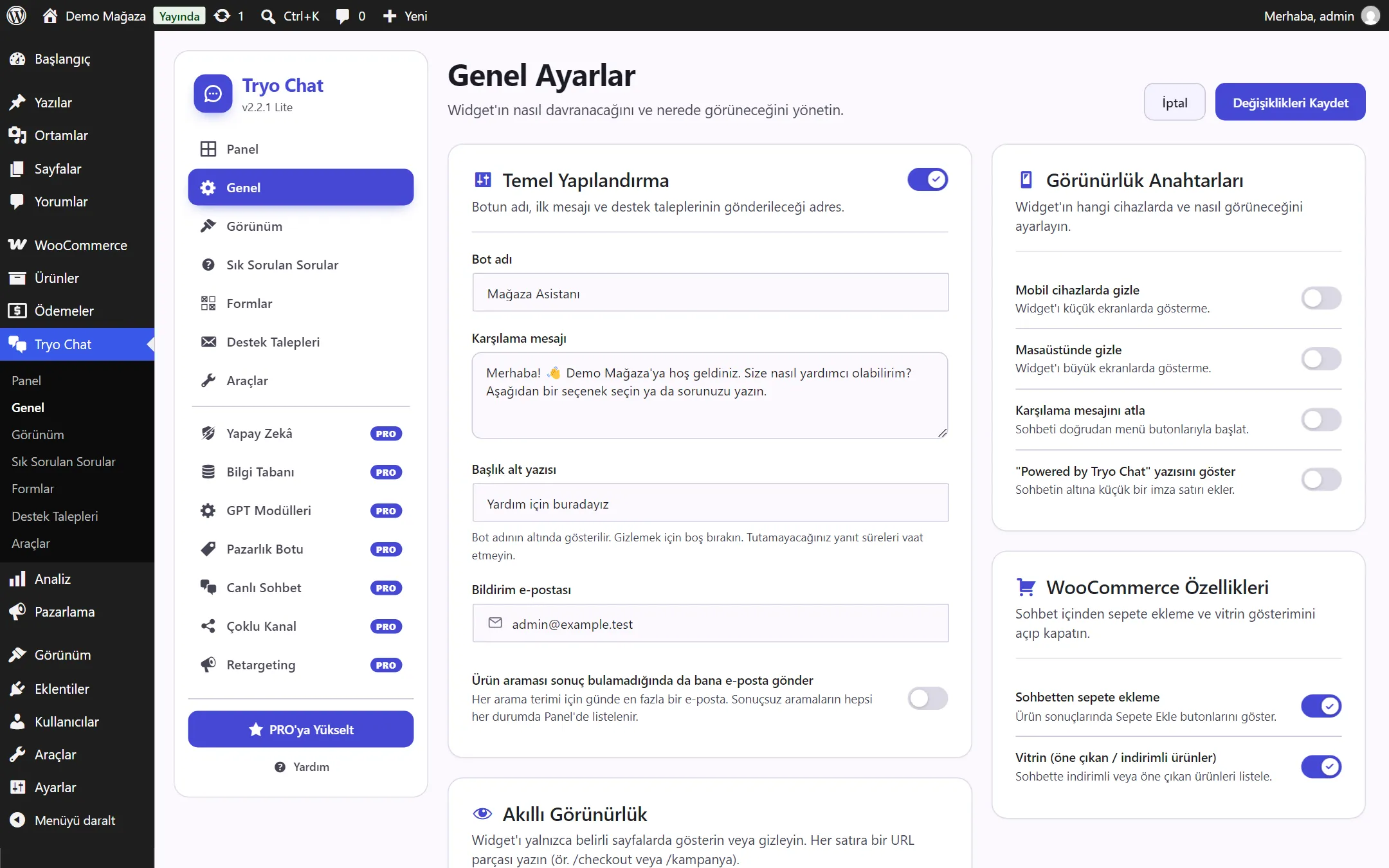
The settings on the Tryo Chat → General page. After making changes, click Save Changes at the top right.
Widget status
Section titled “Widget status”- Chat widget active: If you turn it off, the widget doesn’t appear on any page of your store; your settings are kept.
- Skip welcome message: If on, the chat starts directly with the menu buttons.
Visibility switches
Section titled “Visibility switches”- Hide on mobile devices / Hide on desktop: Shows the widget on only one device type.
- Show “Powered by Tryo Chat” text: Adds a small Tryo Chat credit line under the widget. Off by default.
Bot identity
Section titled “Bot identity”- Bot name: Appears in the chat window header, for example “Store Assistant”.
- Welcome message: The first message shown when the chat opens.
- Header subtitle: The short text under the bot name. It is hidden if you leave it empty.
Notifications
Section titled “Notifications”- Notification email: Support requests are sent to this address. By default it is the site’s admin email. Custom form submissions go to each form’s own recipients.
- Also email me when a product search finds nothing: Off by default. When on, at most one email per day is sent for the same word.
Smart Visibility
Section titled “Smart Visibility”To show the widget only on certain pages, or hide it on certain pages:
- Choose a Visibility rule:
- Show everywhere (default)
- Show only on listed pages
- Hide on listed pages
- In the URL list box, write one address fragment per line.
The rule applies if the page’s address contains one of these fragments. Case doesn’t matter. Examples:
| What you write | Matching pages |
|---|---|
/checkout | The checkout page and every address under it |
/product/ | All product pages |
/campaign | Addresses such as /campaign and /campaign-november |
Click-to-chat
Section titled “Click-to-chat”You can open the chat when any link or button on your site is clicked by adding the data-tryochat-open attribute to it:
<a href="#" data-tryochat-open>Write to us</a>In the block editor you can add this with a Custom HTML block. To add it to an existing button block, open the block’s menu, choose Edit as HTML, and add the data-tryochat-open attribute to the <a> tag.
WooCommerce features
Section titled “WooCommerce features”- Add to cart from chat: If you turn it off, the “Add to Cart” button on product results and My Cart in the menu are not shown.
- Showcase (featured / on-sale products): If you turn it off, the Showcase button is not shown in the menu.